For iPhone & iPad
WiFi Plan
See where your WiFi is strong, and where it isn’t.
WiFi Plan maps your home’s WiFi. Scan or draw your floor plan, walk round measuring the real speeds you get, and see on a heat map where the signal is strong and where it struggles. Then find out which router or extender is doing the work, and where another one would help, before you buy anything.
Free to tryOne purchase for ProNo subscriptionNo accountNothing sent to us

Coming soon to the App Store
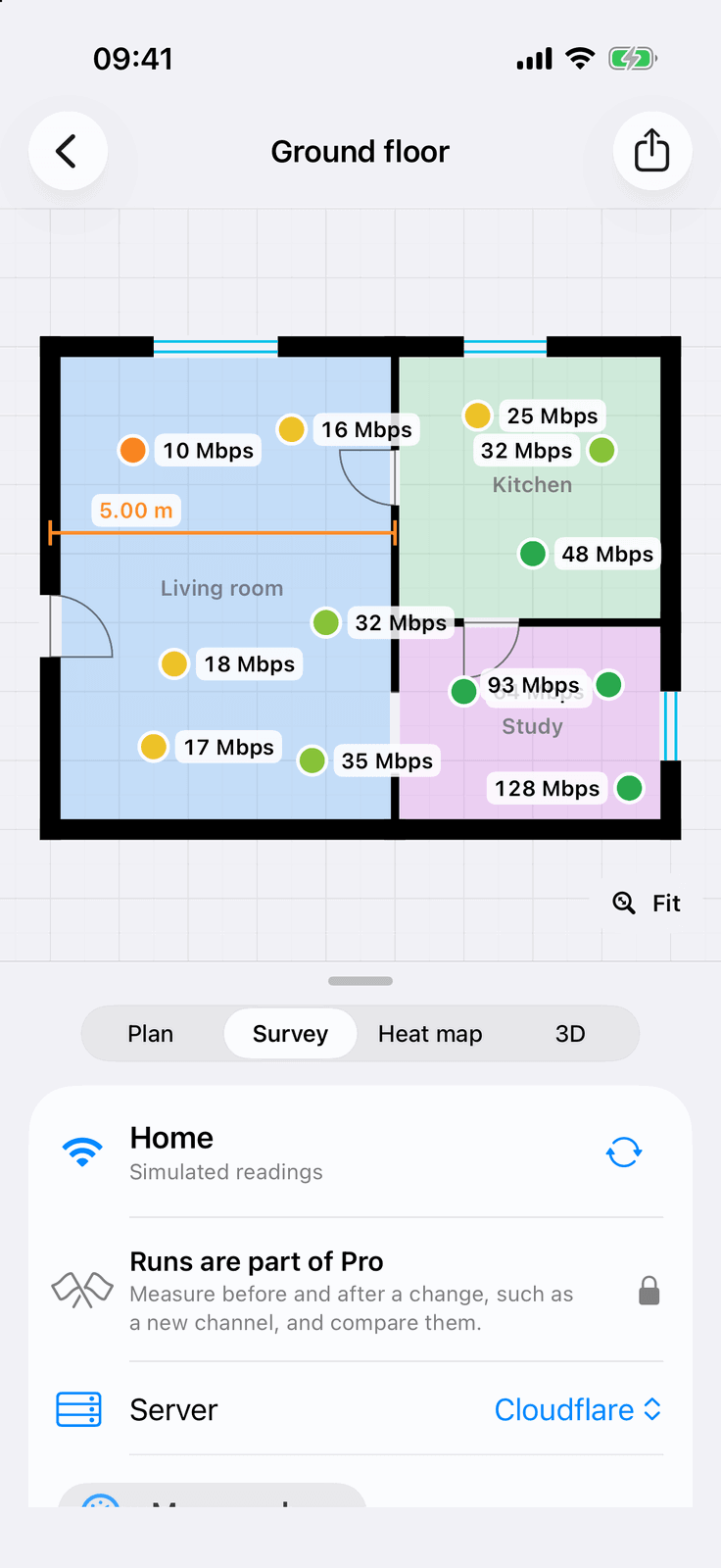
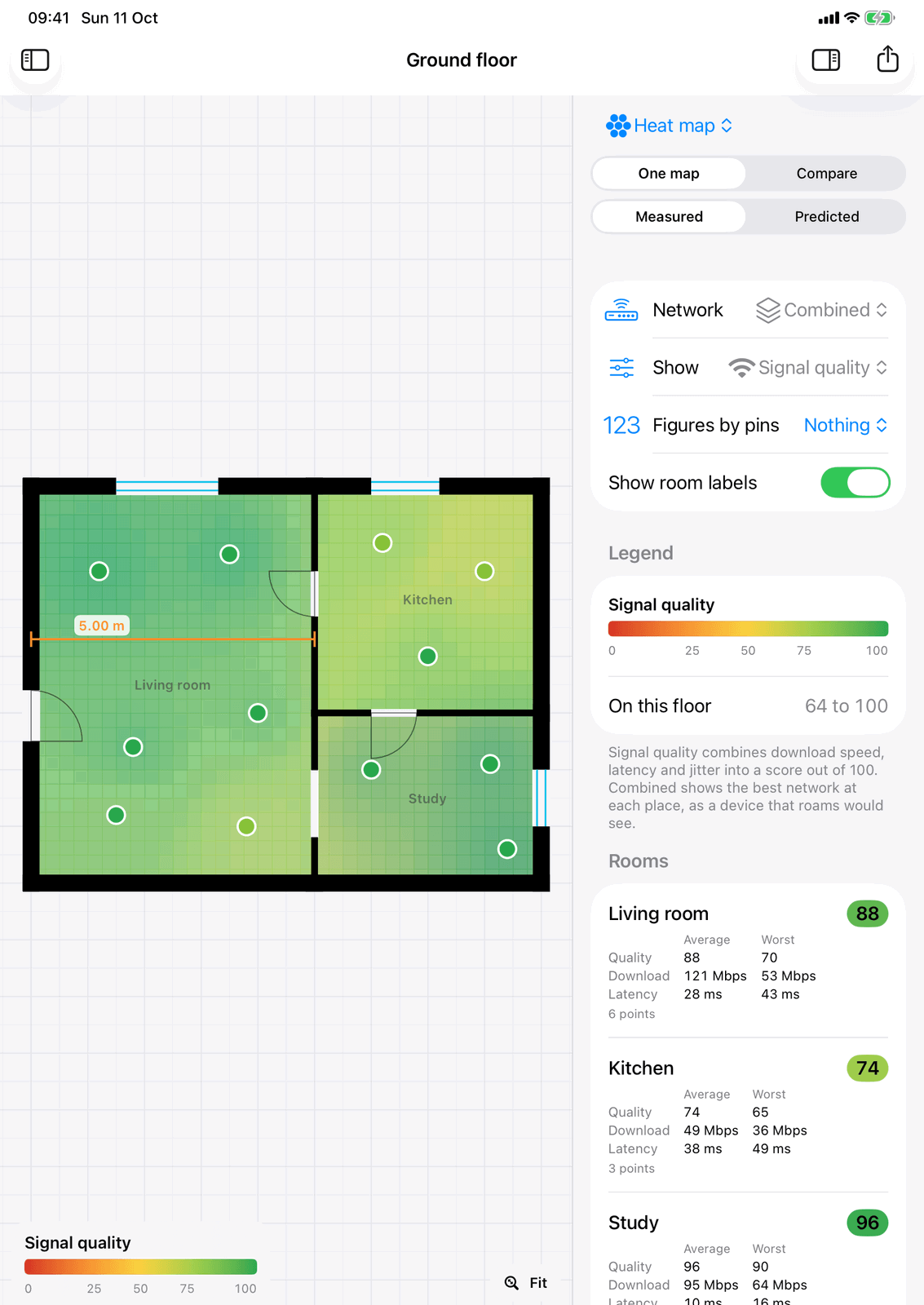
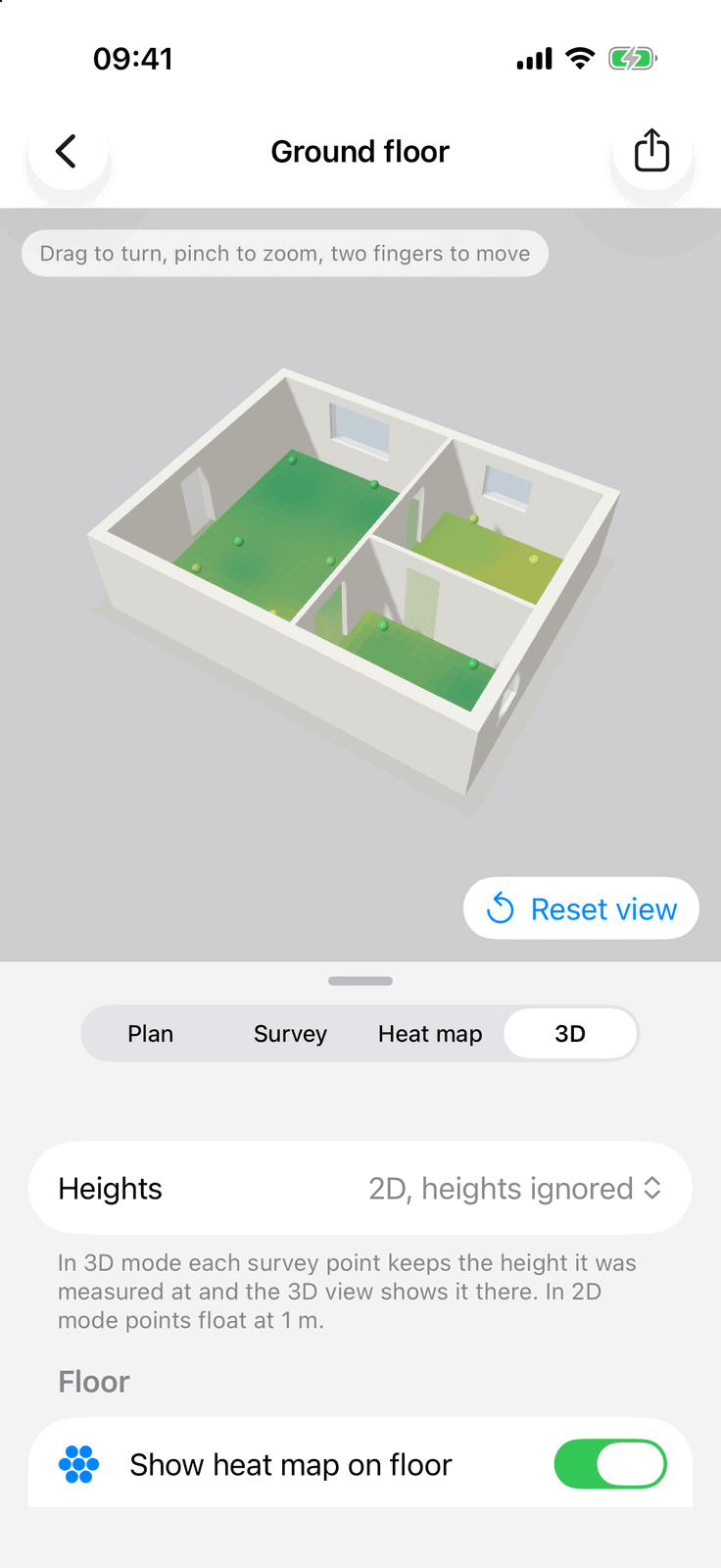
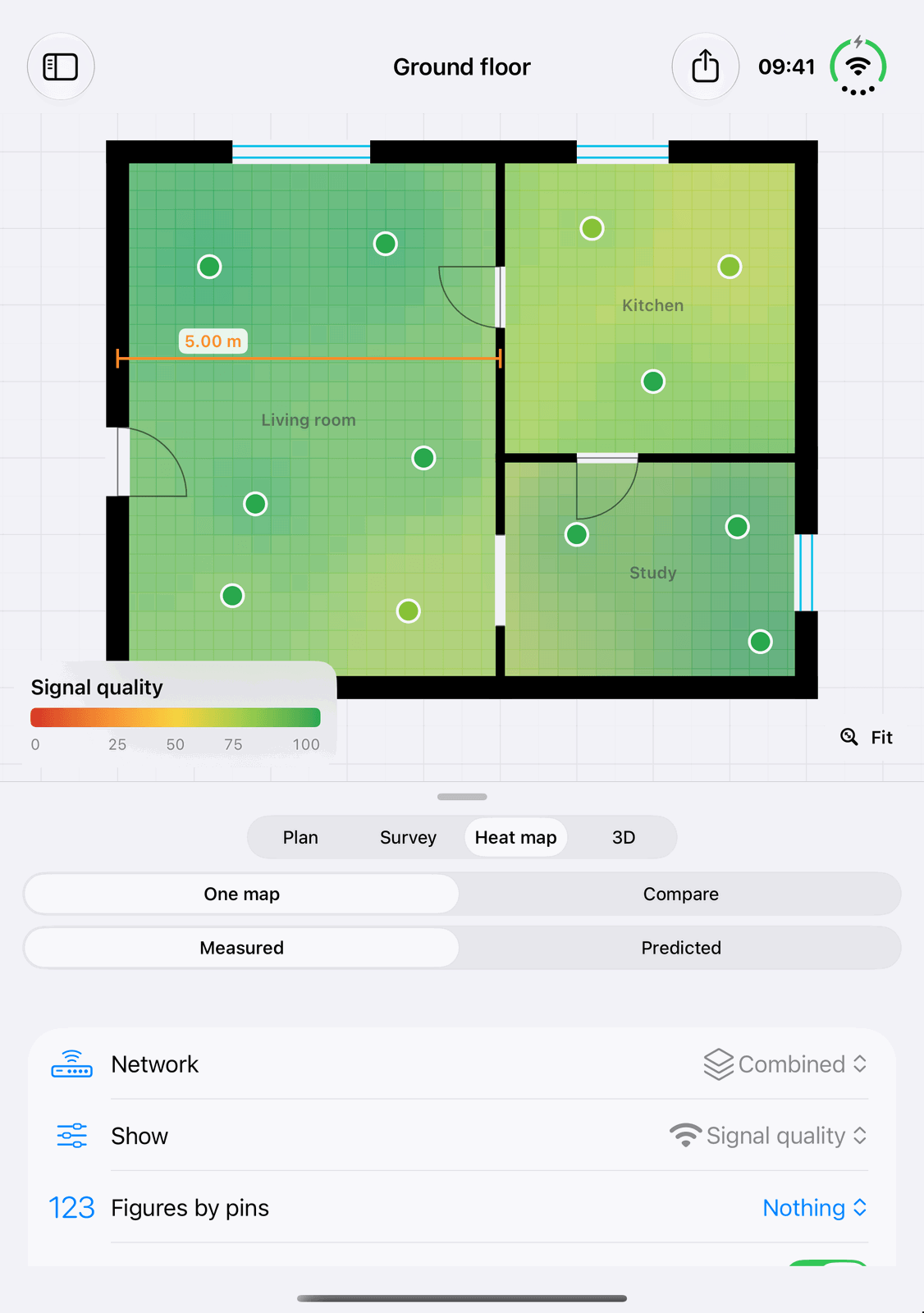
The built-in sample house on an iPad: the heat map and a summary for every room. Either side on iPhone, the survey points with their speeds and the same house in 3D.
1
Scan or draw your home
Walk slowly through the rooms with a LiDAR iPhone or iPad and get a tidy plan of straight walls, doors and windows. No LiDAR? Draw the walls with a finger.
2
Walk round and measure
Stand somewhere, tap the plan where you are, tap Measure here. Each point measures the connection you actually get over WiFi.
3
See where it is good
The heat map fills in the plan from your points: green where WiFi is good, red where it struggles, with a summary for every room.
Scan with LiDAR, or draw it
A tidy plan of your home in minutes
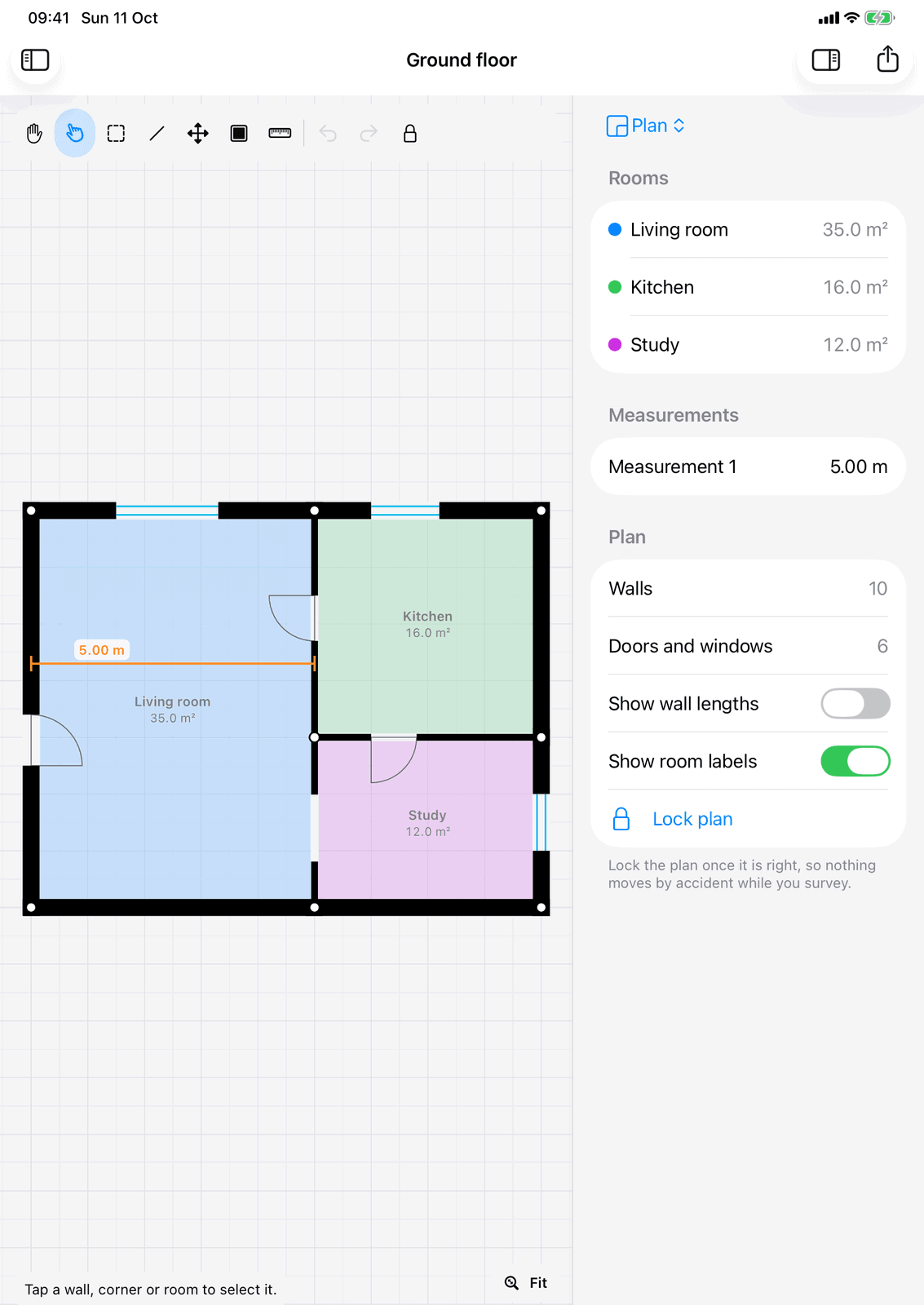
On an iPhone or iPad with a LiDAR scanner, walk slowly through the rooms and WiFi Plan turns the scan into a plan of straight walls, with the doors and windows in place. No LiDAR? Draw walls as lines or rectangles with a finger.
- Scan a whole floor at once or a few rooms at a time. Each extra scan arrives as its own piece and joins the house when you drag it on; an outbuilding stays separate
- Name and colour rooms, flip doors, show wall lengths, and lock the plan when it is right
- As many floors as your home has, each lined up over the floor below, and the whole house in 3D
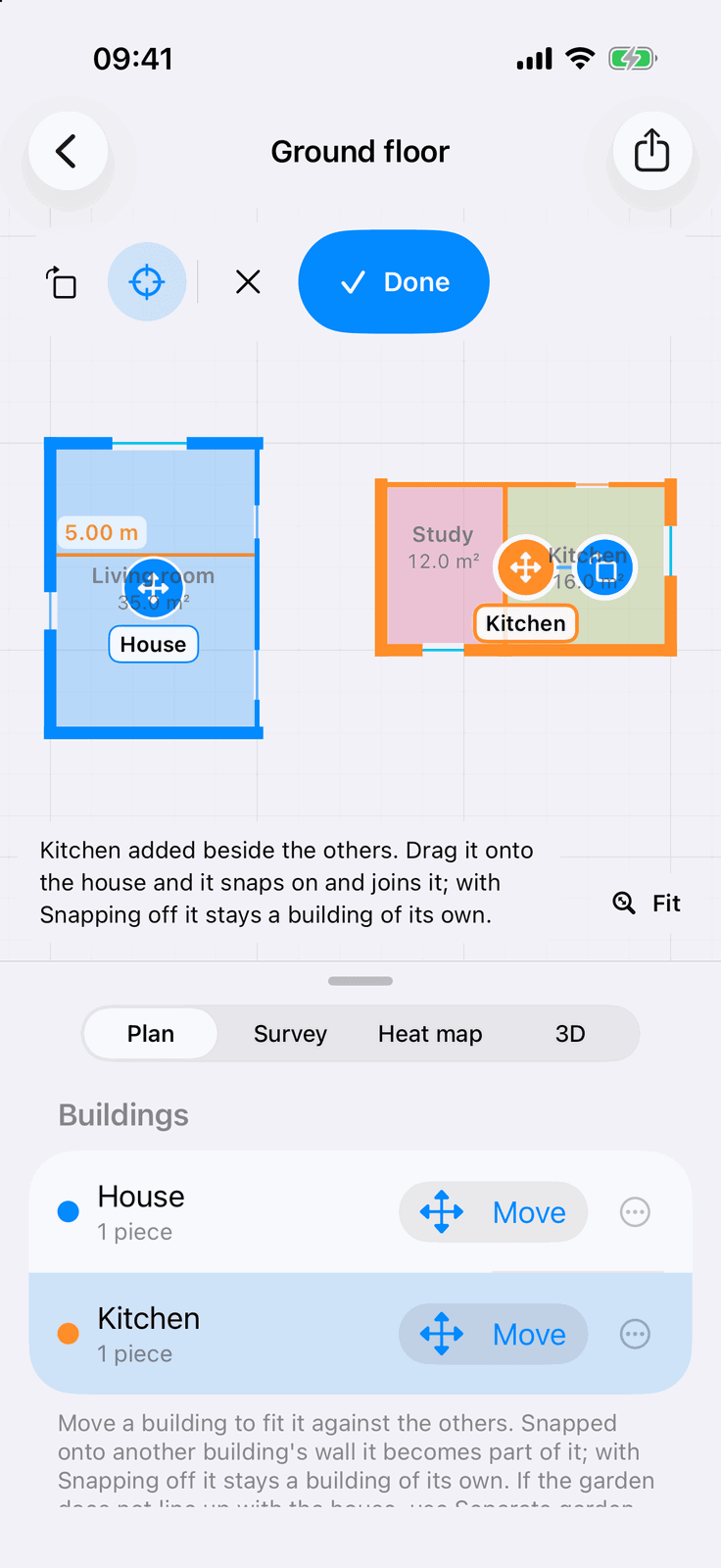
Here the kitchen was scanned separately. It arrives beside the house as its own piece; drag it onto the house and it snaps on and joins it. With Snapping turned off it stays a building of its own, for an outbuilding.
Walk round and measure
Real speeds, measured where you stand
Stand somewhere, tap the plan where you are, and tap Measure here. Each point measures the connection you actually get over WiFi, then you move on to the next spot. Show the figures beside the pins to read the whole house at a glance.
- Download and upload speed, latency and jitter at every point
- Combined into one quality score from 0 to 100, so spots are easy to compare
- Measured against Cloudflare’s speed test servers, built in, or a server of your own
- Locate me finds your place on the plan from the scan when you are indoors
See where your WiFi is good
A heat map of every room
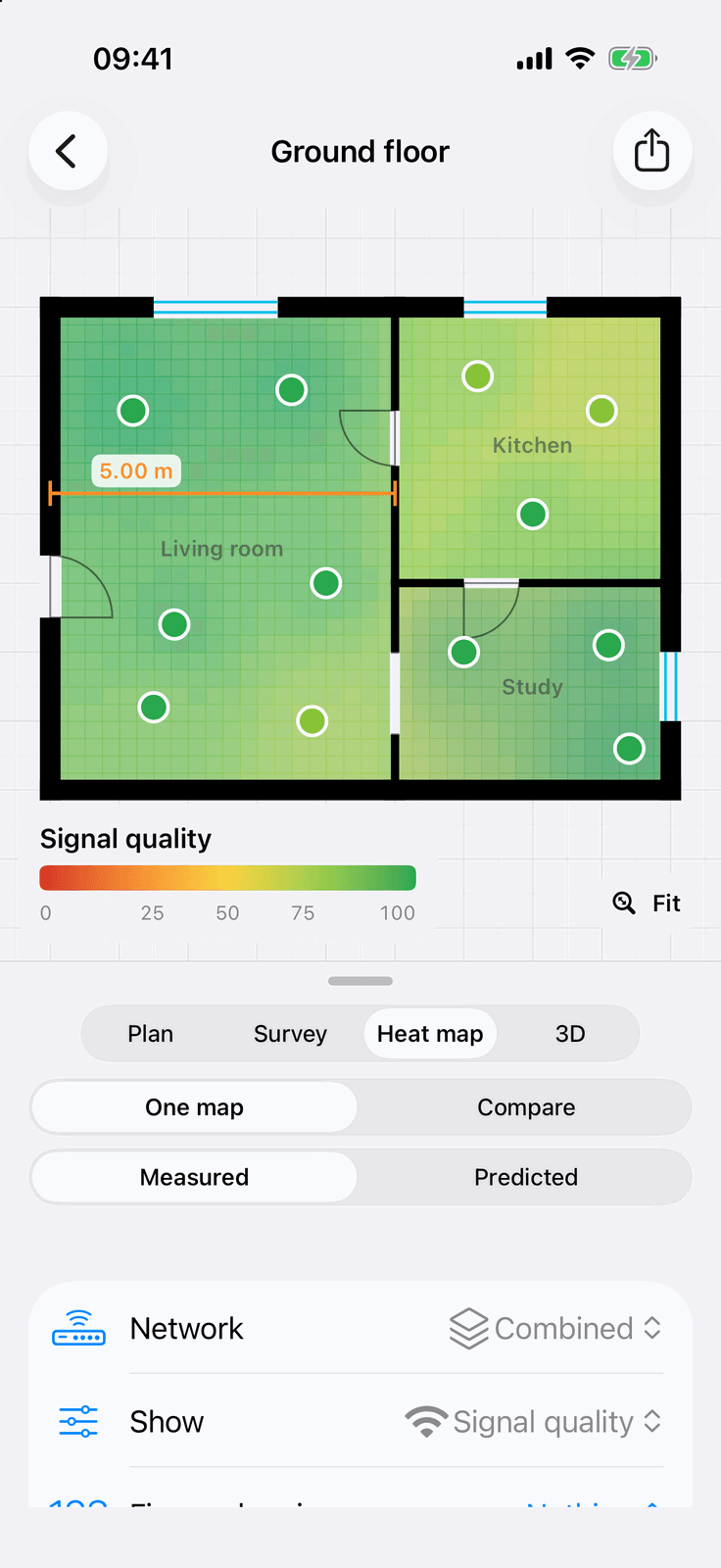
The heat map fills in the plan from your points: green where WiFi is good and red where it struggles, with a key on the map and a summary for every room, so the weak corner is obvious rather than a hunch.
- Map download, upload, latency or the overall quality score
- One network at a time, or all of them combined
- Each room’s average and worst figures alongside the map
Routers, extenders and mesh
See the area each box really covers
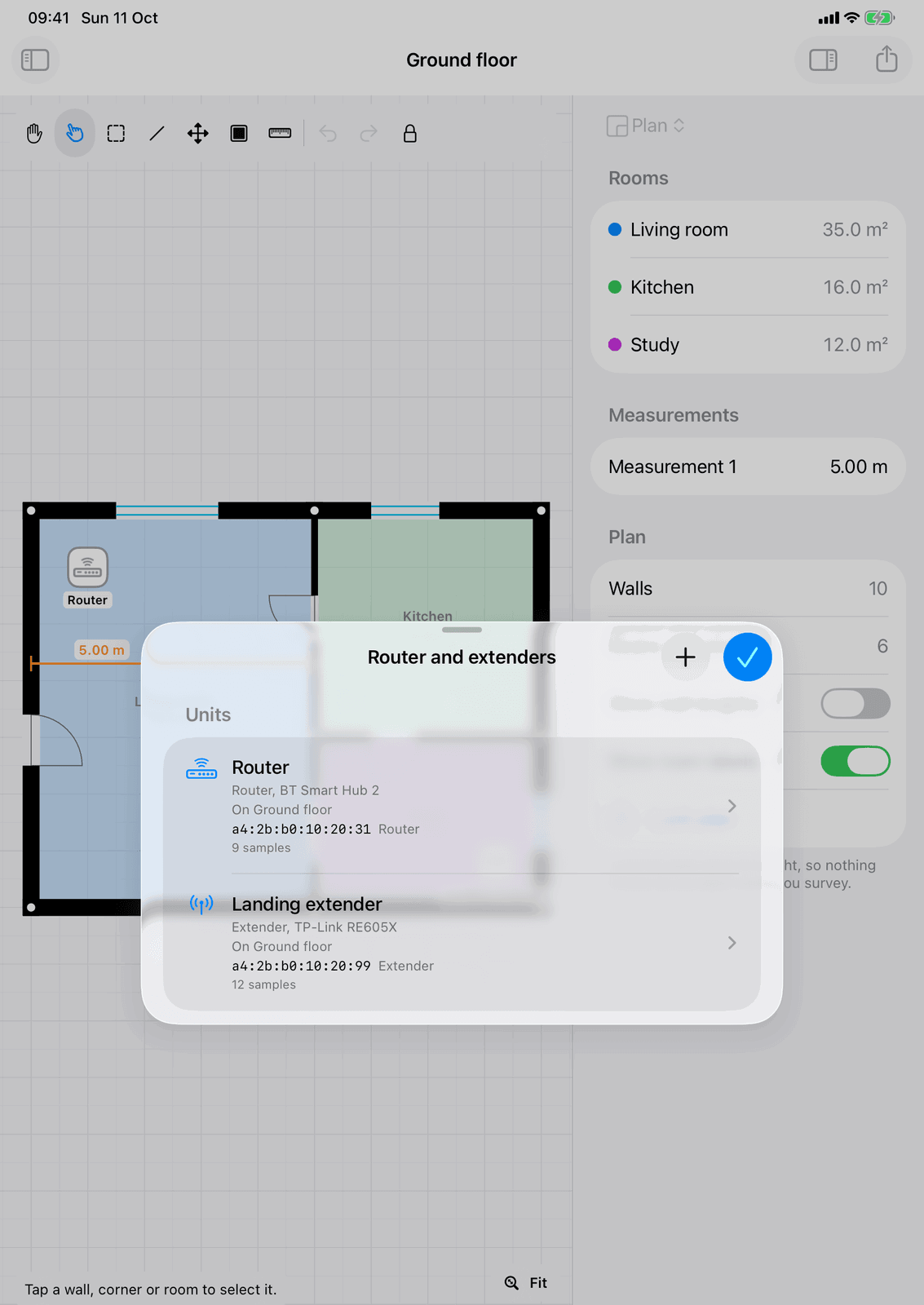
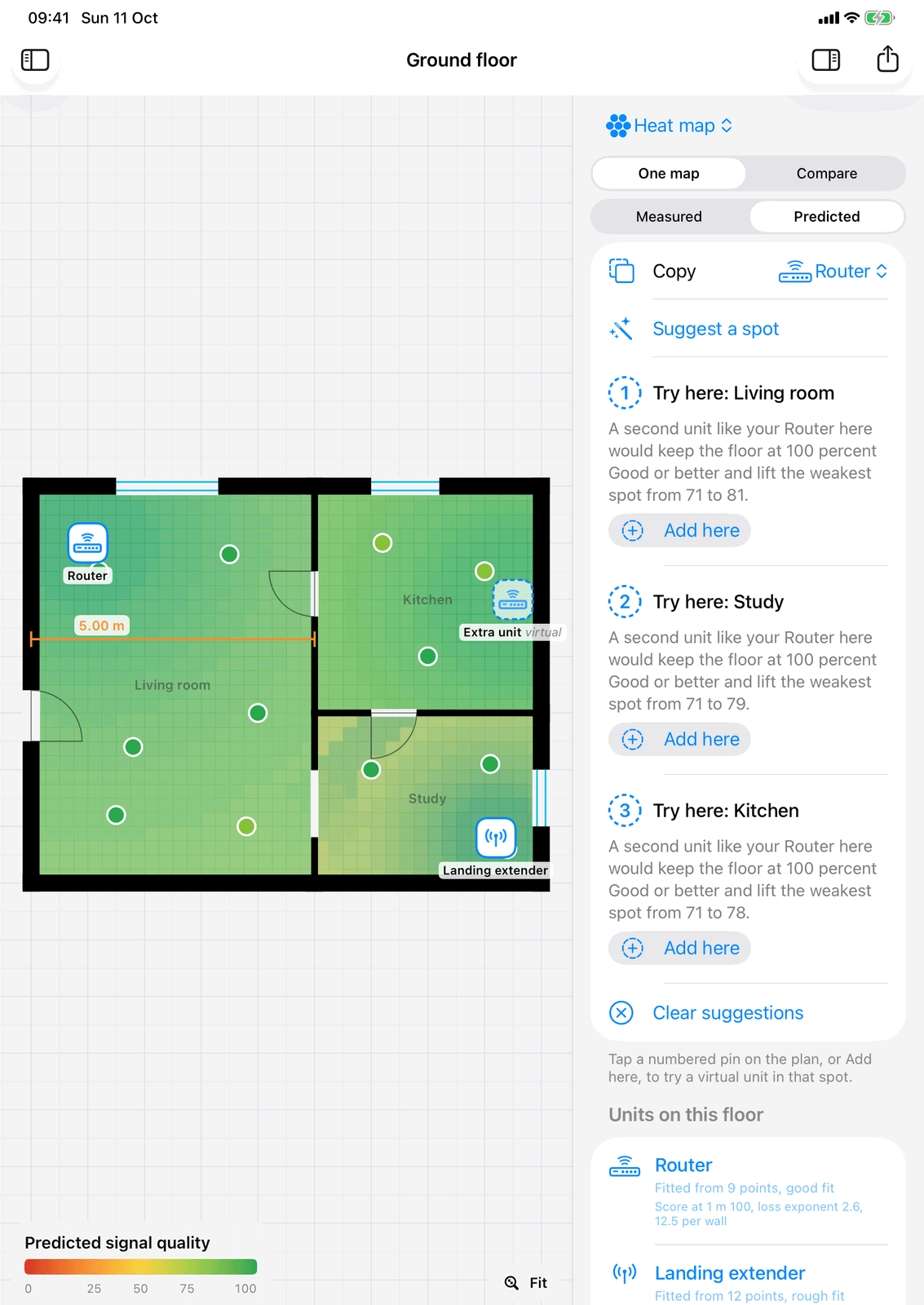
Tell WiFi Plan which boxes you have and where they sit: the router, an extender on the landing, a mesh point in the kitchen. It works out which box each measurement came through, so you can see the area each one really covers, not the area the box promises.
Plan an extender
Find the best spot before you buy one
Drop a virtual unit on the plan and see the coverage it would give, worked out from the measurements you have already taken. Or ask for suggested spots, and WiFi Plan says how far a unit in each one would lift the weakest spot in the house.
- Try a spot before buying, moving or rewiring anything
- Switch between the measured and predicted maps with one tap
Compare, and before and after
Know exactly what got better
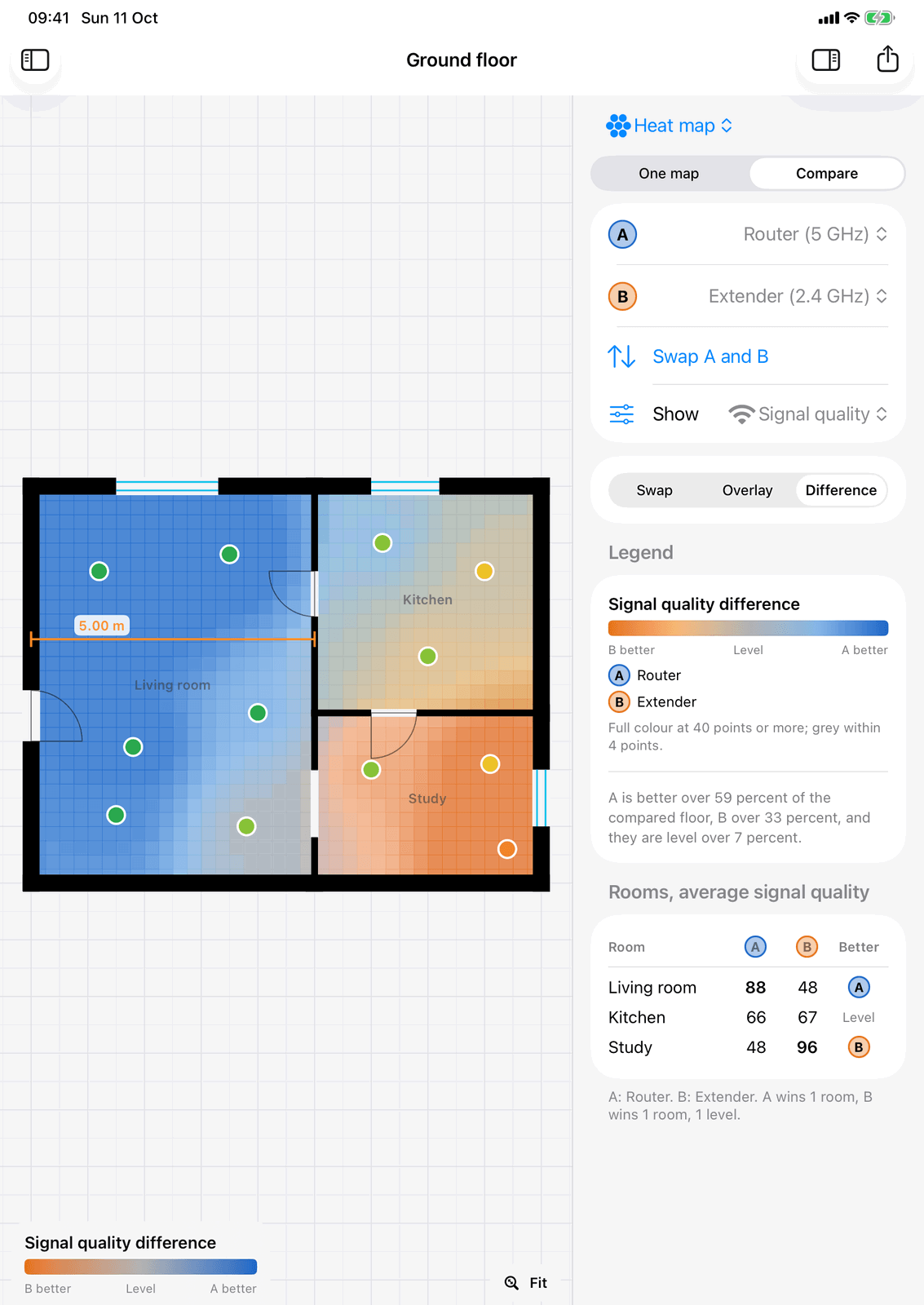
Compare 2.4 GHz with 5 GHz, or the router against an extender, side by side, as an overlay or as a difference map that colours each part of the floor by which one wins, with a room-by-room table underneath.
Change something, a channel or an extender’s position, start a new run, and measure the same points again. The before and after shows exactly what improved and where.
Outside too
Take the survey into the garden
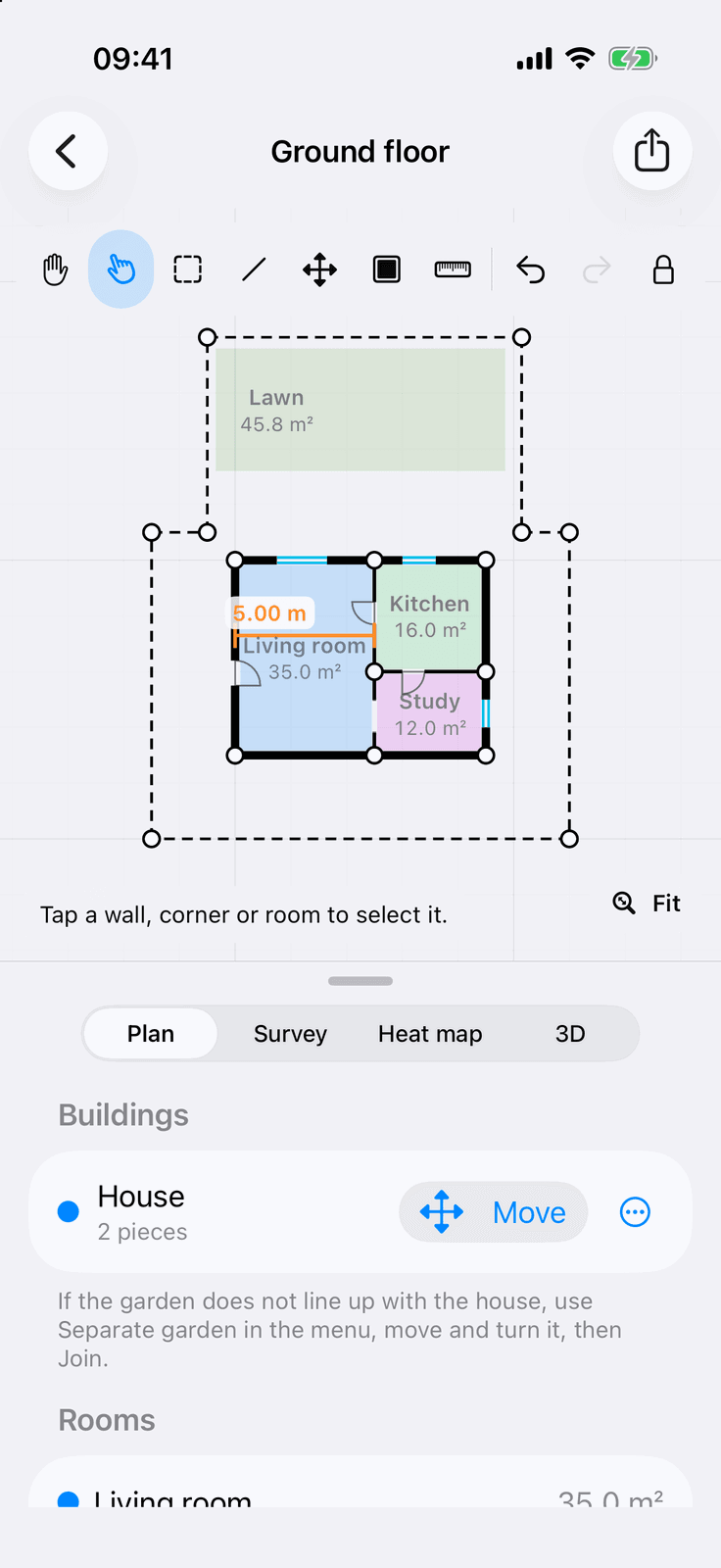
Step out of a door and walk round the edge of the garden. The area you walk becomes the plot’s boundary, with the house inside it, so the garden office, the patio and the bottom of the lawn can be measured too.
- Mark lawns, patios and beds by hand as areas
- Place points outdoors by tapping where you stand on the plan
3D and exports
Take the plan anywhere
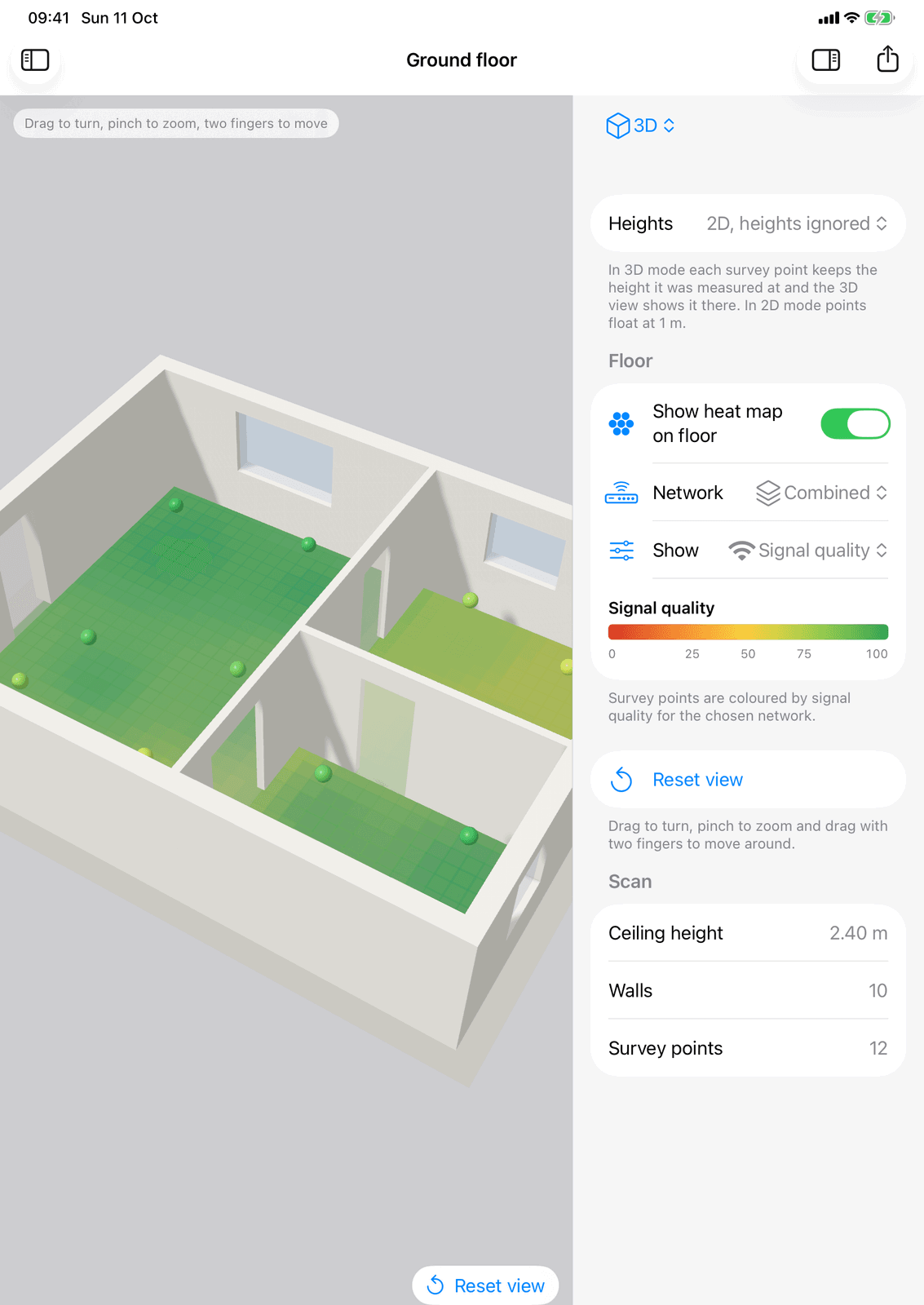
The whole house in 3D with the heat map on the floor, and exports for a printout, a report, a CAD drawing or a BIM model.
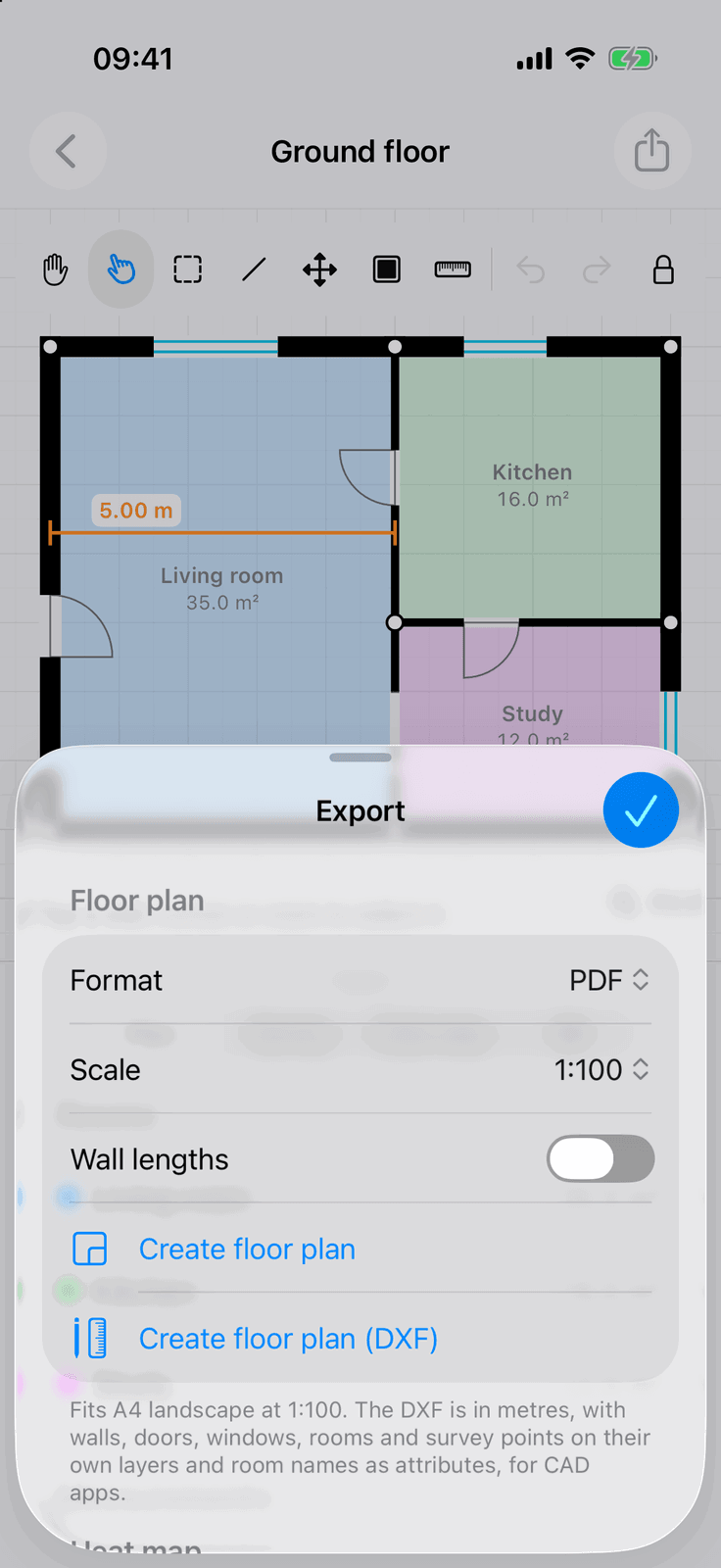
PDFPNGFull PDF reportUSDZ 3D modelDXF floor planIFC modelCSVJSON
Plans and heat maps as PDF or PNG, a full PDF report, the 3D model as USDZ, a DXF floor plan with room names as attributes for CAD, an IFC model for BIM tools, and every measurement as CSV or JSON.
iPhone, iPad and iPhone Duo
Made for the device in your hand
WiFi Plan runs on iPhone and iPad with iOS 18 or later, including iPhone Duo open, half folded and closed. The iPhone is the easy one to carry from room to room; on the iPad the plan and its controls sit side by side.
- Scanning needs a LiDAR scanner: iPhone 12 Pro and later Pro models, or iPad Pro 2020 and later
- Everything else works on any supported iPhone or iPad
- Projects sync between your devices through your own iCloud, free, with no account to make
Straight answers
Before you download
Why are there no signal bars or decibel readings?
iOS does not give apps a reading of the WiFi signal itself. Instead, WiFi Plan measures what actually matters: the real download and upload speed, latency and jitter you get at each spot, against a speed test server.
Why does it ask for my location?
iOS only tells an app the name of the WiFi network after location access While Using is granted. WiFi Plan reads the network name to label measurements, and never stores or sends your location.
What is LiDAR needed for?
Only for scanning rooms into a plan, and for Locate me, which finds your place on a scanned floor indoors. LiDAR is on iPhone 12 Pro and later Pro models and iPad Pro 2020 and later. Without it, draw the plan by hand and everything else works.
Does it work in the garden?
Yes. Step out of a door and walk round the edge of the garden: the area you walk becomes the plot’s boundary, with the house inside it. Mark lawns, patios and beds by hand, and place points by tapping the plan.
Which speed test server does it use?
Cloudflare is built in, and you can add your own server instead. Test data goes to that server like any web request; nothing goes to us.
Is there a subscription?
No. The free version keeps one project, and the sample house counts as one: explore it, then delete it to survey a floor of your own. WiFi Plan Pro is a single purchase that unlocks everything else.
Free and Pro
Free to try. One purchase for the rest.
The free version keeps one project, and the sample house counts as one. WiFi Plan Pro is a single purchase, not a subscription.
Free
Try it on your home
- One project, and the built-in sample house counts as one: explore it, then delete it to start your own
- One floor and up to three survey points of your own
- iCloud sync between your devices
WiFi Plan Pro
One purchase
- Unlimited projects, floors and survey points
- Every export: PDF, PNG, report, USDZ, DXF, IFC, CSV and JSON
- Compare mode, and before and after runs
- Predicted coverage, virtual units and suggested spots
- A one-off purchase on your Apple Account, not a subscription. Restores on your other devices and after reinstalling
Private by design
Your home stays on your device
No account, no analytics, nothing sent to us. The App Store privacy label says Data Not Collected.
Nothing is collected
No account, no sign-in, no analytics, no advertising and no third-party code. Plans and measurements stay on your device, and nothing is ever sent to us.
Location, only for the network name
iOS requires location access before telling any app the WiFi network name. WiFi Plan reads the name to label measurements and never stores or sends your location.
The camera, on the device
Used for LiDAR scanning and for finding your position on the plan. Everything it sees is processed on the device and never leaves it.
Speed tests and iCloud
A speed test sends test data to Cloudflare or a server you add, like any web request. iCloud sync uses your own iCloud account, which we cannot read.
The details, in full: WiFi Plan Privacy Policy
Stop guessing where the WiFi drops out.
Walk round once and see it.
Requires iOS 18 or later. iPhone and iPad; LiDAR scanning on Pro models. No account, no advertising, no subscription. Built by PDS Technology in the UK.
Coming soon to the App Store
Questions? Get in touch·support@pds-technology.ltd